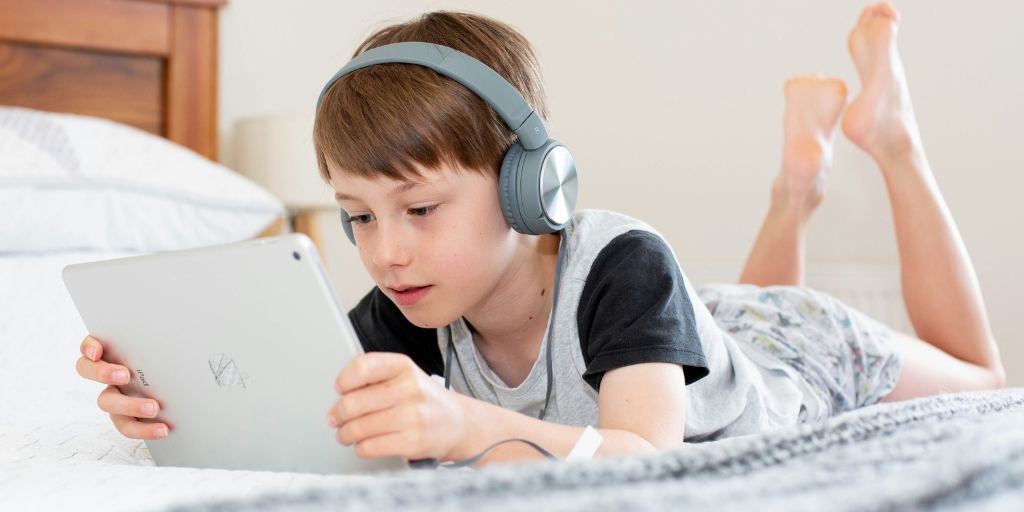
For many families, the iPad feels like the “safe” device — the thing kids use before they’re ready for a smartphone. But iPads come with many of the same risks: exposure to inappropriate content, contact from strangers on apps like Roblox and YouTube, and unhealthy screen habits.
That’s why it’s important to take proper precautions, like setting up iPad parental controls and monitoring your child’s use. This guide explains how to put parental controls on your child’s iPad step-by-step, as well as how to monitor their activity in order to keep them safe.
Do I need to use iPad parental controls?
Whether you have an “iPad kid” or a casual user on your hands, it’s vital that you use iPad parental controls. That’s because, while kids get some benefits from using iPads, they also face risks.
Exposure to inappropriate content. Unrestricted access to iPads can expose kids to explicit images, adult content, and violent videos.
Stranger danger. Online spaces have surpassed offline ones as the environment where kids are most likely to be targeted by predators. Grooming can (and does) happen on apps your child probably has on their iPad, like Roblox and YouTube.
YouTube. Picture a young child using an iPad, and you likely imagine them watching endless streams of YouTube videos. In addition to inappropriate content and contact with strangers, YouTube can expose kids to cyberbullying, dangerous algorithms, content that promotes self-harm and disordered eating, and more.
Excessive screen time. Too much screen time can reduce physical activity, lead to problems in social-emotional development, and contribute to certain behavior problems.
How to put parental controls on the iPad
In order to put parental controls on your child’s iPad, you must first set up Family Sharing. Here’s how to do it:
Go to Settings.
Tap your name.
Select Family Sharing.
Follow the prompts to set up your Family Sharing group.
Add your child as a family member.
After you’ve set up Family Sharing, here are the parental controls we recommend:
Screen Time.Screen Time allows you to view how much time your child spends on particular apps and websites and control the amount of time they spend on each screen activity.
Content Restrictions. Set filters and age restrictions for music and podcasts, movies and TV shows, books, apps, web content, and games. You can also filter explicit language on Siri.
App Limits. With this feature, you can choose which preinstalled apps your child is allowed to use.
Downtime. Use this to select the days and times when your child is blocked from using their device.
Communication Limits. Limit who can contact your child through iMessage, restrict who they can communicate with during Downtime, and prevent them from adding new contacts without your approval.
Restrict iTunes & App Store Purchases. Not only will this parental control prevent any surprise bills, but it also means your child can’t download any apps (even free ones) without your permission.
How BrightCanary can help with iPad monitoring
iPad parental controls offer a lot of protection, but monitoring what your child does on their iPad is equally vital. BrightCanary can help you with iPad monitoring.
Real-time alerts when your child types anything concerning.
AI-powered insights and summaries.
Full transcripts of your child's activity when needed.
Plus, when your child is ready for an Apple Watch or iPhone, BrightCanary can help you monitor those, too.
In short
Kids face various dangers when using iPads, including exposure to inappropriate content and predators. It’s important to use iPad parental controls to help keep your child safe on their device.
iPad monitoring is another important piece of the safety puzzle, and BrightCanary can help. BrightCanary monitors everything your child types on their iPad, so you can easily keep track of their activity across all apps. Download today and get started for free.
Be the most informed parent in the room. Sign up for digital parenting updates.
We've earned the APA Labs Digital Badge
BrightCanary is honored to earn this designation from the American Psychological Association (APA). This APA Labs Digital Badge reflects alignment with APA Labs criteria for scientific principles, safety, ethical use, and usability. It is not an endorsement nor guarantee of effectiveness. APA Labs does not independently test products.
Excellence in online safety
The Mom’s Choice Awards evaluates products and services created for children, families, and educators. The program is globally recognized for establishing the benchmark of excellence in family-friendly media, products and services. BrightCanary was recognized for our excellence in family-friendly online safety.