You’re probably aware of the importance of monitoring your child’s iPhone, but knowing where to start is another story. This guide explains how to monitor an iPhone using Apple Family Sharing and BrightCanary, as well as what activity you’ll want to keep an eye on.
You’ll learn:
Whether this is your child’s first phone or you’re reassessing your current setup, this step-by-step guide will help you monitor your child’s iPhone in a way that balances privacy, trust, and protection.
Here are some reasons why you should monitor your child’s iPhone:
According to leading researchers, the best way to keep your child safe online is a comprehensive, hands-on approach that includes supervision and monitoring.
Unchecked, your child’s iPhone is a portal through which billions of strangers can reach them. That includes scammers and child predators.
Over half of all teens have experienced some form of cyberbullying. If your child is being bullied online, identifying the issue early allows you to step in and support them.
A quarter of teens say they’ve been sent explicit images that they didn’t ask for. Kids who send sexts could also face serious legal consequences.
Without guardrails, your child could easily find their way to content that’s wildly inappropriate for their age.
Exactly what you monitor will depend on your child, the circumstances they find themselves in, and your parenting approach. Here’s what to consider monitoring:
Apple’s Find My is built into every iPhone. Use it to see your child’s location.
Prevent excessive screen time by monitoring how much time your child spends on their phone each day.
Not all screen time is created equal. You might want your child to spend more time with educational apps and less time with brainrot videos on YouTube. Breaking screen time limits down by app helps you understand the full picture of how your child spends their screen time.
Over half of U.S. teens send and receive more than 200 messages a day. You’ll want to keep an eye on what your child sends and receives.
Social media can have a major impact on a child’s mental health, including contributing to anxiety and depression, disordered eating, and substance abuse.
Google is the window to the soul. (Isn’t that how the saying goes?) Maybe not, but your child’s internet searches can tell you a lot about what’s on their mind, including — and especially — searches in incognito mode.
AI is everywhere. The full impacts on kids are still largely unknown, but early reports don’t give much room for optimism. Between sketchy AI companions, faulty safety notifications, and cognitive decline, it’s wise to keep a sharp eye on how your child uses AI.
When considering how to monitor iPhone use, start with the free parental controls that come built in to your child’s device.
Here’s how to set up parental controls on iPhone:
1. Set up Family Sharing
2. Set a Screen Time passcode
3. Turn on Content & Privacy Restrictions
For a full list of recommended settings and instructions, check out our comprehensive guide to iPhone parental controls.
Parental controls on the iPhone are an excellent first step, but they don't offer many options for monitoring. That’s why Apple Screen Time is most effective when paired with a parental monitoring app like BrightCanary.
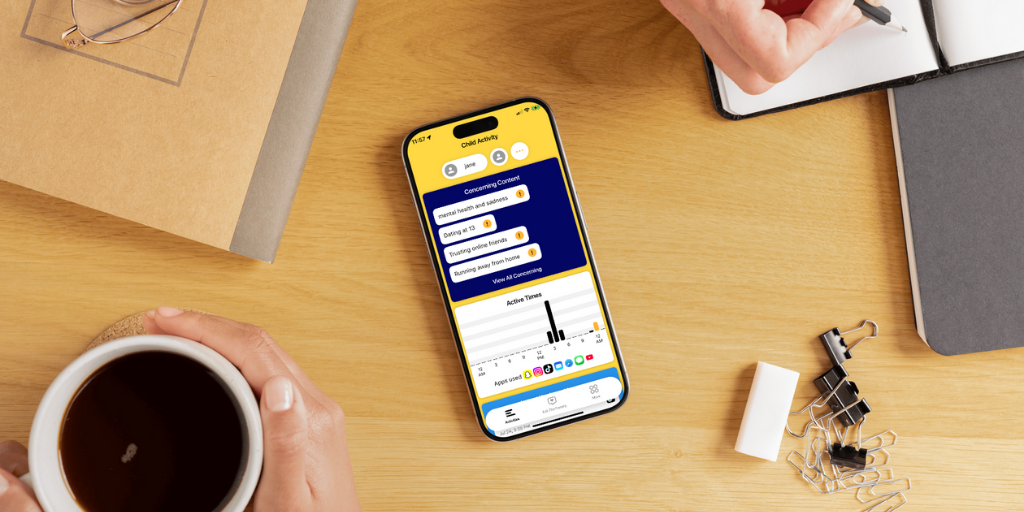
With BrightCanary, you get the most robust iPhone monitoring available. Use BrightCanary to:
During setup, you’ll want to pick which plan is right for you. BrightCanary has two plans:
If you’re not sure which plan is right for you, try out BrightCanary with a free trial.
Monitoring your child’s iPhone is an important part of keeping them safe online. Apple’s parental controls, paired with BrightCanary’s monitoring capabilities, create robust protections. Use the combo to manage screen time, set content restrictions, monitor what they type online, and get alerts when there’s a concern.
BrightCanary provides the most robust protection available for iPhones. Use it to monitor your child’s activity on the apps they use the most. Download today to get started for free.