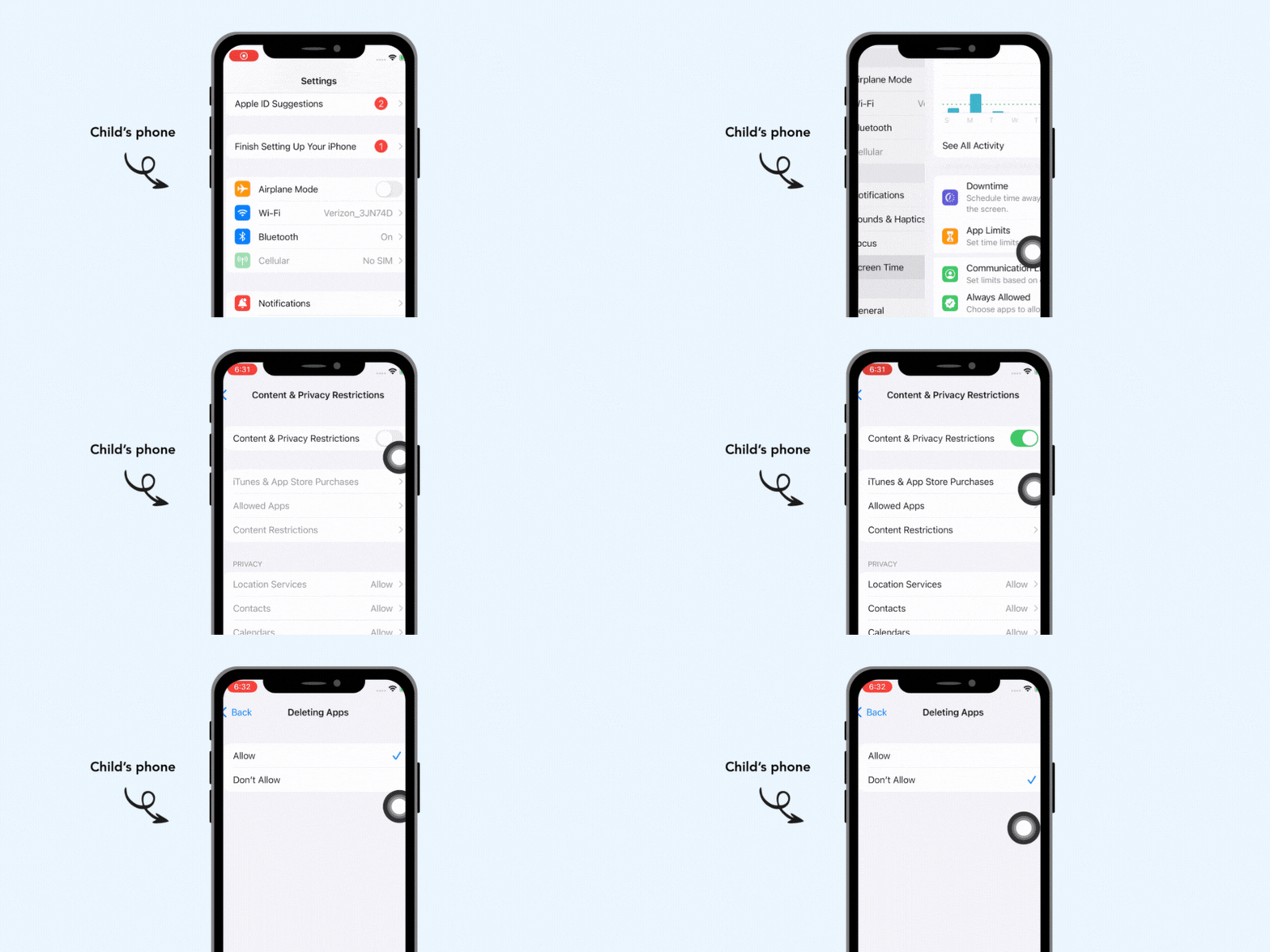
These steps are highly recommended to prevent your child from deleting the BrightCanary app. They take just a couple minutes.
1. Prevent your child from deleting the BrightCanary app
- On your child’s device, go to Settings > Screen Time > Content & Privacy Restrictions
- Tap iTunes & App Store Purchases
- Tap Deleting Apps > Don’t Allow
Heads up: To lock these settings and prevent your child from changing them, go back to Screen Time.
Scroll to Restrictions. Tap Lock Screen Time Settings and set a unique passcode to secure your settings.
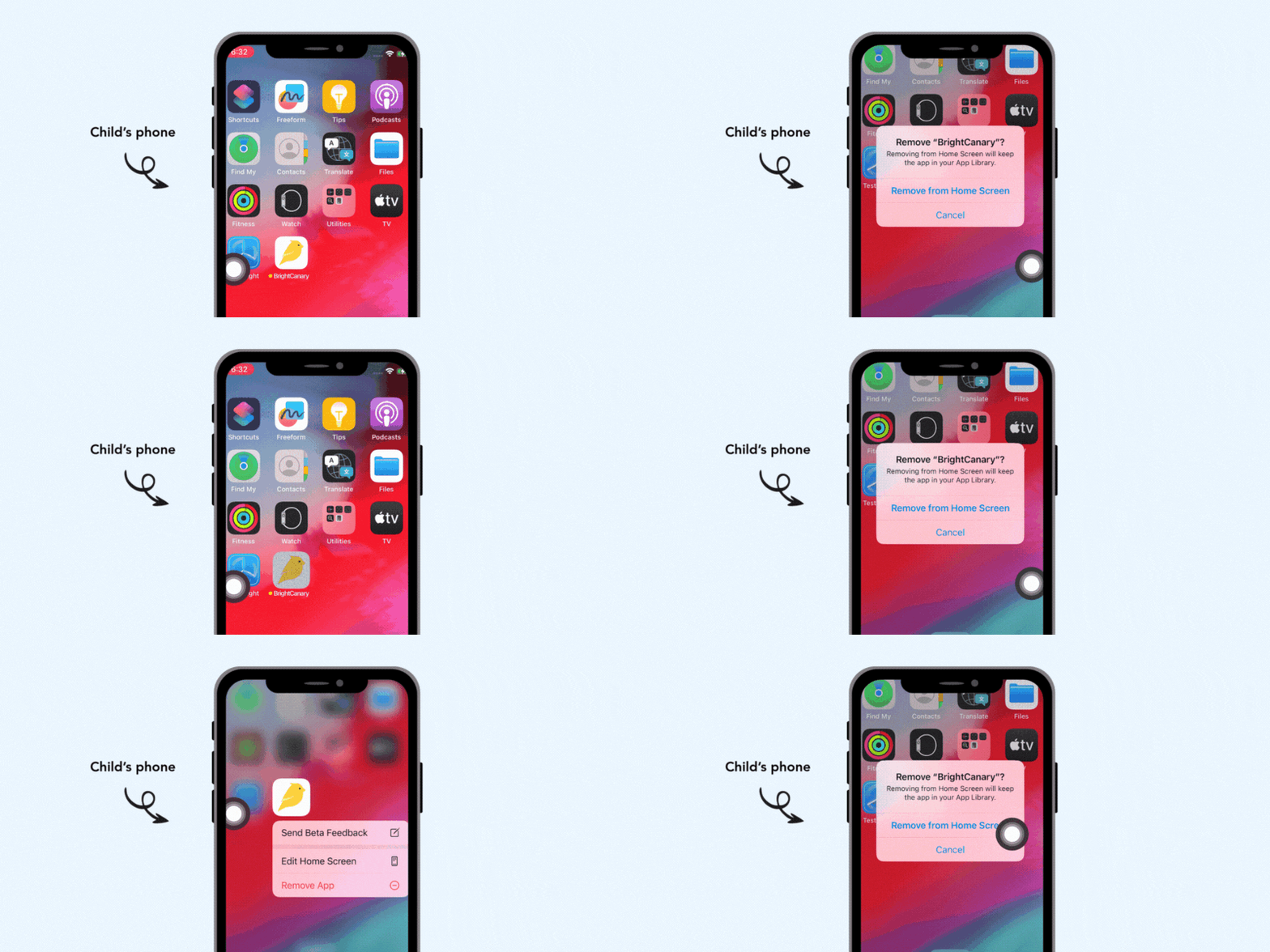
2. Remove BrightCanary from your child's home screen
- Hold down the icon until the menu appears
- Tap “Remove From Home Screen”
That's it! If we stop receiving data from your child's device, we'll let you know so you can take a look at their settings.
Our success team is ready to make sure you've got this. Tap the Support button in the app or email us at support@brightcanary.io.