

Digital parenting anxiety is the persistent worry parents feel about their child’s safety and behavior online. While some concern is healthy, excessive anxiety can lead to overreacting, avoidance, or rigid rules that undermine trust. The goal isn’t zero worry, but rather balanced, informed involvement.
After all, anxiety about our kids’ digital activity is real. There’s just so much to be concerned about, from predators to toxic content to “My kid said what on their group thread?”
It’s easy to either ignore the problem or go overboard with vigilance, but a measured middle ground is what best serves kids. Here are my tips for finding a balance that keeps your child safe and your sanity intact.
Ordinary worry can tip into harmful anxiety about what your child is doing in digital spaces, and that’s when problems can occur.
A little anxiety reminds us to be vigilant, but too much leads to decisions rooted in fear, not fact. When parents make digital decisions from a place of high anxiety, research suggests children may:
When digital parenting anxiety goes unchecked, it often pushes parents into one of three patterns. To determine whether your digital parenting anxiety is helpful or counterproductive, let’s examine the three types:
The digitally overreacting parent responds to anxiety by doing all the things. This leads to decisions driven by fear, rather than needs, and makes it hard to adapt as their child grows.
You may be a digitally overreacting parent if:
The head-in-the-sand digital parent may appear not to care about their child’s safety online, but that’s far from the truth. They react to digital parenting anxiety by not acting. This leaves their child without the guardrails and supervision necessary for safety.
You may be a head-in-the-sand digital parent if:
The Goldilocks digital parent knows it’s important to stay involved while giving their child the independence they need to learn to use technology responsibly. This sweet spot encourages trust and sets guardrails that are firm but fair.
You may be a Goldilocks digital parent if:
I recognize that being a digital Goldilocks is easier said than done. I write about this professionally, and I still find myself occasionally overreacting or sticking my head in the sand. (Remember, perfection isn’t the goal!) But I promise, finding a balance that works for your family is possible.
My tips for Goldilocks digital parenting:
Stay up-to-date on the platforms your child uses and digital parenting best practices. Here are a few of my go-to resources for research-based, measured advice that doesn’t peddle in fear:
Privacy settings and parental controls create guardrails for your kids while giving them the freedom they need.
It’s vital to monitor your child online. But sneaking behind their back or going overboard with how much watch at robs them of necessary independence.
BrightCanary is the perfect solution. The app scans everything your child types across all platforms and alerts you to red flags, so you can get involved when you need to and give them privacy when you don’t.
Start with the platform your child uses most and build from there. Check out our guides to Instagram, Snapchat, Roblox, and Discord to start.
Explain the reasons behind your rules. Your kid still might not like it, but they’re more likely to follow it if they understand why.
Worrying about your kids online can be a helpful reminder to stay proactive. But when it crosses into anxiety, it can cause you to overreact or freeze. Seek a balanced approach by educating yourself, staying involved without going overboard, and remaining flexible.
BrightCanary helps you monitor your child’s activity on the apps they use the most, so you can ease your digital parenting anxiety while still keeping them safe. Download today to get started for free.

Yes, teens can safely use Venmo with parental supervision and the right guardrails in place. Venmo teen accounts include built-in parental controls, debit card access, and spending oversight. However, parents should understand the risks of scams, privacy issues, and peer pressure before signing their teen up.
With precautions like setting up parental controls and monitoring their account, your teen can use Venmo safely and responsibly. Here’s everything you need to know about teen Venmo accounts.
A lot of the reasons your kid might want a teen Venmo account are the same things that make it useful for adults.
A Venmo account helps teens split expenses with friends for everything from coffee runs to gas for a road trip to escape rooms.
Like adults, teens are less likely than ever to carry cash. A Venmo teen account makes life easier for you and your kid. They have the funds they need when they need them, without begging you for physical cash you don’t have.
Not everywhere takes Venmo, but Venmo teen accounts also give kids access to their own debit card.
A majority of teens lack personal finance skills, and nearly half report having never made a budget. Experts suggest that giving teens access to financial tools is a great way to teach them financial literacy, with parents providing oversight and guardrails.
Overall, Venmo is a safe, secure option for teens, but it’s not without risks. Here are five you need to know:
As your child gets their financial sea legs, it’s crucial to support them by monitoring their Venmo activity. A three-part approach is best.
Teen Venmo accounts have great parental controls. Use them to:
Communicating with your teen about how they use their Venmo account is key to helping them develop financial literacy. Periodically check in with them about their budget, spending habits, and attitude toward money.
It’s great to see that Venmo has such robust parental controls, but too much oversight can actually do more harm than good. Teens need the freedom to make their own decisions and to learn from their mistakes. Conversely, it’s too risky not to be involved at all.
With BrightCanary, you get the best of both worlds.
Venmo is one of the most well-known financial apps, but it’s not the only good option for kids. Here are five alternatives to teen Venmo accounts.
Venmo gives teens access to a debit card, the opportunity to develop financial literacy, and robust parental controls to keep them safe. It’s not without risks, though. Fraud, scams, and the temptation to overspend are a few things parents need to watch for.
By using the built-in parental controls, regularly checking in with your teen about their spending, and adding a monitoring app like BrightCanary, Venmo is a great option for your teen.
BrightCanary helps you monitor your teen’s activity on the apps they use the most, including everything they type on Venmo. Download today to get started for free.

To block websites on an iPhone, use Apple’s Screen Time feature to restrict adult content or manually add specific sites to the “Never Allow” list. You can also configure DNS settings to block adult websites at the Wi-Fi network level. These tools help reduce exposure, but they work best as part of a layered online safety plan.
This guide explains how to block websites on iPhones, along with additional steps you can take to protect your child.
Here are a few of the reasons you might want to block a website:
If your child has a hard time peeling themselves away from social media to do their homework, but they need their phone to complete it, temporarily blocking websites can help.
Teens are really good at finding porn online. Stay two steps ahead by blocking adult websites.
If you aren’t ready to set your child loose on social media platforms yet, it’s wise to block the sites. Because even if you require permission through Family Sharing to download apps, social media sites can be accessed through an iPhone web browser.
There are three approaches to blocking websites on your child’s iPhone: setting filters through Apple Screen Time, blocking individual websites through Apple Screen Time, and setting filters at the network level.
This one is for my nerds out there. Because this method works when your child is connected to a specific Wi-Fi network, it’s best to use it as part of a layered approach to blocking websites.
On your child’s iPhone:
Blocking websites on your child’s iPhone is a great step. But it isn’t a magic bullet to keep your child safe online. Here’s why:
Remember when I talked about needing to take a layered approach to blocking websites on your child’s iPhone? Your overall plan for keeping your child safe online should also be multi-pronged. Here are other measures you can take:
Sit with your child and go over what kind of websites and content are and aren’t okay for them to access. Explain that your goal is to keep them safe.
Regularly check in with your child about what they do online. Encourage them to come to you if they encounter something that makes them feel uncomfortable or unsafe.
Blocking websites on your child’s iPhone is a helpful first step. But it doesn’t show you what they’re actually searching for, typing, or encountering online. That’s where monitoring becomes important.
BrightCanary helps parents see what their child types across web browsers and apps — including Safari, Chrome, social media, AI chatbots, and even incognito or private browsing modes.
With BrightCanary, you get:
That level of insight matters because even if you block adult websites, kids can still access risky content through social media links, private browsers, shared screenshots, or new websites you haven’t blocked yet.
Website filters reduce exposure, but monitoring helps you understand behavior. Used together, they create a layered approach to online safety — one that protects your child without requiring you to hover over their shoulder.
Want more visibility into what your child is doing online? Try BrightCanary with a free trial today.
You can block adult websites using Apple Screen Time. Go to Settings → Screen Time → Content & Privacy Restrictions → Content Restrictions → Web Content, then choose “Limit Adult Websites.” You can also manually add specific sites under “Never Allow.”
Some children may try to bypass restrictions by using VPNs, alternative browsers, or different Wi-Fi networks. This is why blocking websites works best as part of a layered approach that includes monitoring and open communication.
Yes. Apple’s Screen Time restrictions apply across Safari, even in private browsing mode. However, third-party browsers may require separate monitoring.
You can configure DNS settings at the Wi-Fi network level using a family-safe DNS provider like Cloudflare for Families. This filters adult content whenever the device is connected to that network.
No. Blocking websites reduces exposure, but kids can still encounter risky content through apps, messages, and social media. Parental controls should be combined with device security, monitoring, and ongoing conversations.
From inappropriate content to social media sites to homework distractions, there are many reasons you might want to block websites on your child’s iPhone. Apple’s Screen Time and blocking websites at the network level are the two best options. But just blocking websites isn’t enough. You need to take additional steps, like using a monitoring app, in order to keep your child safe online.
BrightCanary shows you everything your child searches across all web browsers on their iPhone, even in incognito mode. Download today and get started for free.
Crunchyroll can be safe for kids with parental supervision, but it is not automatically child-friendly. The platform includes anime rated up to 18+, with graphic violence, sexual content, and mature themes. Parents should use content restrictions and monitor viewing activity to reduce risk.
Anime isn’t my thing, so Crunchyroll wasn’t at all on my radar. Turns out, it’s an extremely popular way to stream anime. If your child is into anime or manga, chances are good that they’re familiar with the platform and likely already using it. But is Crunchyroll safe for kids? I dove into the app to answer this question, and here’s what I found.
Crunchyroll is a streaming service featuring anime and manga videos that can be accessed through a browser or the Crunchyroll app.
It includes movies, single episodes, and series, many of which are subtitled or dubbed, so users can view them in their preferred language.
There are also a limited number of games, as well as Japanese music like J-Pop.
Because Crunchyroll is primarily a streaming service, and the game center doesn’t have a chat feature, you don’t need to worry about strangers contacting your child, like you do on YouTube and social media.
Crunchyroll isn’t without risk, though. As a parent, here are the top concerns I found:
Some of the violence on Crunchyroll is stylized and cartoonish, but plenty is quite graphic and gory.
Take Higurashi (rated 16+), which opens with a man bludgeoning a woman to death in her bed. The sound effects alone were enough to give me nightmares.
Apparently, anime porn is a thing. Who knew? You won’t find outright porn on Crunchyroll, unlike some other anime streaming sites, but there is plenty of mature sexual content, even in the 14+ rating category.
Sexual violence, including rape and incest, is also present on Crunchyroll, although a lot of it is rated 18+. However, ratings aren’t always foolproof. There was a controversial misrating of Goblin Slayer a number of years ago: despite featuring a graphic rape scene, it was originally rated PG.
I definitely found some strong female characters on Crunchyroll, but I also found plenty of bouncing breasts, anatomically impossible proportions, and idealization of submissive women.
You can set content restrictions on your child’s account, which will filter content. The password has to be entered to change which rating their account is set to.
Of course, this only works if you set up your child’s account for them and keep the password secure. There are no additional parental controls.
In 2024, Crunchyroll finally introduced a content rating system. Accounts can also be set with content restrictions that filter content based on the rating system. Your child can change their restriction level at any time, but they must enter the primary account password to do so.
These are the content restriction settings available on Crunchyroll:
Crunchyroll has no age verification whatsoever.
Here are the steps I recommend taking to keep your child safe if they use Crunchyroll:
Through Apple’s Family Sharing, set up Ask to Buy for your child’s devices. That way, you’ll know if they download Crunchyroll and can turn on content restrictions and set a new password so they can’t change their rating level.
Take these steps to keep an eye on what your child watches through Crunchyroll:
The anime and manga streaming service Crunchyroll can be safe for kids if parents take steps to protect them. The two most important steps are setting up a joint account where the parent controls the password and monitoring online activity with an app like BrightCanary. Download today to get started for free.
There’s only thing more tedious than manually scanning every message, post, and search on your child’s device: having to report your findings to your spouse or co-parent. Who has that kind of time or energy while also raising said child? Personally, I’d rather spend date night talking about more interesting things than the latest tween obsession.
BrightCanary Family Viewing is the time-saving, communication-easing tool that makes it a snap to collaborate with your village to keep your child safe. It’s perfect for busy parents, two-household families, and looping in other caregivers.
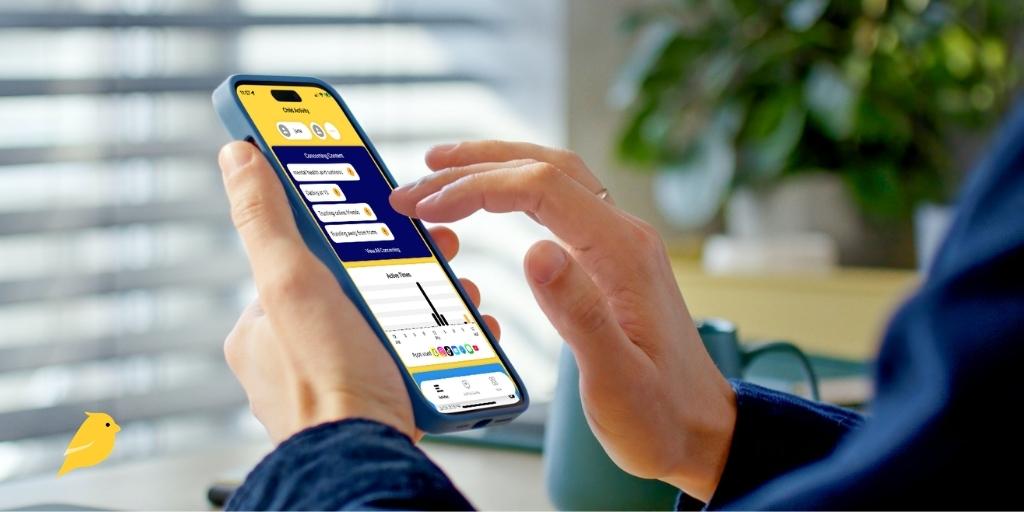
BrightCanary is a monitoring app that provides insight into your child’s digital life without requiring you to read through everything yourself. It harnesses the power of a custom-trained AI model to scan what your child types across all apps they use.
Family Viewing is a free feature built into the app that allows you to invite another parent, guardian, or caregiver to monitor your child’s online activity. You, along with anyone you invite to Family Viewing, get access to:
Once you’ve subscribed to BrightCanary and linked your child’s device, you can invite anyone else you want to monitor your child’s activity online. Family Viewers can’t make any changes to the account, but they’ll receive the same insights and alerts that you do, without paying for a separate subscription.
I found setting up BrightCanary Family Viewing to be a snap. Here’s how:
Make sure you’re on the same page with the other caregiver(s) about how you’ll use BrightCanary. My husband and I are generally aligned on things like this, but this is a new frontier for us, so I know we need to be proactive.
Here’s what’s up for discussion at our house:
If you’re new to BrightCanary, talk to your child about why and how you’re using the app. (Check out these tips.) If you’ve been using it for a while, let them know you’re adding a new Family Viewer. Doing so without informing them could break trust.
This is a new way of parenting collaboration, so there might be hiccups. Periodically review what’s working in your process and what could be improved.
Sure can! When you create an account with BrightCanary, you automatically have access to Family Viewing. This feature allows you to share BrightCanary with another parent, guardian, or caregiver.
With BrightCanary Family Viewing, you can invite another parent, guardian, or caregiver to monitor your child’s activity. Invited viewers can’t make account changes, but they’ll receive the same reports you do, so you can collaborate to keep your child safe online.
You do not need to live in the same household as another parent, guardian, or caregiver in order to give them account access through Family Viewing. In fact, Family Viewing is especially useful for co-parenting situations. Family Viewing gives you the tools you need to work together to keep your kiddo safe online.
Family Viewing is a free feature included with your regular plan. There’s no need to purchase a separate subscription for additional viewers.
Of course! It takes a village to raise a child, and your BrightCanary Family Viewing village can be as large as you want. Just follow the same steps to invite additional people.
Situations change, so if you need to remove someone from your BrightCanary Family Viewing, you can do so at any time from the Settings menu.

No, Hazbin Hotel is not for kids. The show is rated TV-MA (17+) and contains extreme violence, explicit sexual content, strong profanity, and mature themes. It is intended for adults and is not appropriate for children or young teens.
The animated musical series has become incredibly popular despite having only two seasons released. The hotel is located in Hell, and its proprietor is none other than Lucifer’s daughter, who offers sinners a chance at redemption to enter Heaven. Because the show originally rose to fame on YouTube, it has a lot of buzz among younger viewers. However, Hazbin Hotel is far from child-friendly.
Here’s a breakdown of its age rating, mature content, and what parents should know before letting their child watch it.
Is Hazbin Hotel appropriate for kids? No. The show has a rating of TV-MA (mature audiences, 17). It isn’t suitable for children.
Parents should know that this is not a typical animated series. It is created for adults and contains themes that are inappropriate for younger viewers.
Heads up: If you’re concerned about what your child may be watching online, BrightCanary can help you supervise their YouTube history, Google searches, and more.
If strong language is a concern for you, Hazbin Hotel is definitely not kid-friendly. It would take nearly this entire article to list all of the profanity and questionable language used in Hazbin Hotel.
Bottom line: the characters have the exact vocabulary you might expect from a group taking up residence in the fiery pits of Hell.
Hazbin Hotel contains strong sexual themes.
The frequent sexual content makes Hazbin Hotel highly inappropriate for kids and young teens.
There’s no getting around the fact that Hazbin Hotel is an extremely violent show, even by adult animation standards. (Granted, any violence is animated, which does make the impact a little less intense.)
The pilot sets the tone right out of the gate, opening on the bloody aftermath of extermination day: an annual event where any sinner or demon found in plain sight is violently culled.
Weapons of every sort abound and are regularly used. Characters pour gasoline on their heads and set themselves on fire, and sexual violence is a common occurrance.
Hazbin Hotel certainly strives to strike fear into its audiences. The show is a horror series set in Hell, after all. The show features:
The frequent violence is likely to scare many children, especially younger ones.
While substance use isn’t as rampant in Hazbin Hotel as violence and sex, it’s certainly present. The show features a lot of drinking and some instances of drug use and references.
No. Hazbin Hotel is rated TV-MA and contains explicit sexual themes and extreme violence that are not appropriate for middle school viewers.
The show is intended for adults 17+.
It contains strong language, sexual content, prostitution themes, violence, and graphic imagery.
It contains more explicit sexual references and violence than many mainstream adult animated shows.
So, is Hazbin Hotel appropriate for kids? No. Despite its animated format, Hazbin Hotel is an adult show with extreme violence, explicit sexual themes, strong language, and mature content. It is not recommended for anyone under 17.
Parents should be aware that even if their child isn’t watching Hazbin Hotel, they may encounter clips, memes, and discussions about the show on YouTube, TikTok, and other social media platforms.
If you’re concerned about Hazbin Hotel content appearing in your child’s social media feeds or search history, parental monitoring tools like BrightCanary can help.
Want to keep tabs on what your child is exposed to online? Try BrightCanary today for free.

I’ve written a lot about how social media is detrimental to kids’ mental health. But witnessing the effort some teens in my life put into selfies motivated me to explore the impact these platforms have on young people’s self-esteem in particular. Does the pressure to be perfect online hurt the way they feel about themselves? I discovered the answer is a solid (and, frankly, unsurprising) yes.
Heightened attention to physical appearance and wavering self-esteem is normal for teens, due in part to developing bodies and an increased awareness of social comparison. Here’s how social media has supercharged this:
Social media prompts unhealthy comparisons in users of all ages. But adolescents' prefrontal cortexes aren’t fully formed, so they process videos and images they see online in a particularly harmful way, literally changing their still-developing brains.
Teens are bombarded with curated, heavily edited images online. Research suggests that these unrealistic beauty standards can significantly change their perception of attractiveness, including how they rank themselves in comparison.
It’s not just viewing altered images that’s a problem. Using filters and editing tools to maximize their own physical attractiveness can also lead to lower self-image. This is particularly stark among teens of color due to racial biases in social media beauty filters. Often modeled on white people, filters reinforce racist ideals of attractiveness.
This conversation often focuses on girls, but boys are also harmed. In one study, nearly every boy reported being exposed to content about appearance such as building muscle and having a certain jawline. Research shows that the more time boys spend on social media, the lower their body satisfaction.
Another way young boys are impacted is that they’re frequently fed a narrow idea of what it means to be male. Exposure to content insisting they must build muscle and have lots of money to impress girls is associated with anxiety, feelings of isolation, and low self-esteem in boys.
While self-esteem around physical appearance takes a particular hit, it’s not the only area that suffers. Constant comparison with others’ social lives and achievements creates feelings of not measuring up.
Here are some signs that may indicate your teen’s self-esteem is suffering due to social media:
Here’s how to help your teen’s self-esteem survive social media:
Social media algorithms are like echo chambers, amplifying the number of image-focused posts teens are exposed to. In fact, two in three boys report being fed content that promotes stereotypes about masculinity without seeking it. Help your teen periodically reset their algorithm.
Adolescents with strong offline relationships exhibit higher self-esteem. Encourage your teen to hang with their friends in person.
Help your teen understand the interaction between social media and self-image. Give them opportunities to process those feelings and encourage them to pull back or take a break from social media when it makes them feel bad.
Adults aren’t immune to the vicious cycle of social media comparison. But seeing you negatively compare yourself to what you see online sets a harmful example for your child.
This is an instance where we need to fake it till we feel it, folks. Work out your own social media-induced insecurities with a friend or therapist and keep that business away from your impressionable offspring.
Overall, there’s a societal acceptance of body dissatisfaction in teens (especially girls). This creates a dangerous environment for teens because their feelings of inadequacy over what they see online are easily overlooked as typical.
Monitor what your child does online and how it makes them feel, and don’t dismiss your instincts when you suspect something is wrong.
BrightCanary helps you keep an eye on social media’s impact on your teen.
You get:
Exposure to heavily edited images, unrealistic beauty standards, and unhealthy portrayals of gender roles on social media negatively impact teens’ self-esteem. You can help by keeping an eye on your child’s activity online, resetting their algorithm, teaching them digital literacy, and modeling a healthy relationship with social media.
BrightCanary helps you monitor your child’s activity on social media by monitoring everything they type across all apps. Download today to get started with a free trial.
Discord is one of the most popular social networks for teens, and when used safely, it can be an incredibly positive space. But there are also potential risks, like exposure to explicit material, contact with strangers, and cyberbullying.
This guide covers everything parents need to know about Discord servers for teens, including how they work, which are most popular, red flags to watch for, and how Discord family Center features can help parents support their teens safely.
Discord is a messaging platform and social network where users come together around shared interests. Teens use it to chat with friends, join fandoms, coordinate gaming sessions, share art, and more.
Users can exchange:
The message board interface is reminiscent of Reddit, but it also includes real-time communication features.
Discord servers are communities built around a specific topic. They can be public (open to anyone) or private (invite-only).
Servers are organized into text or voice channels, dictating how users can communicate within that server.
There is a huge variety of servers, from harmless hobby communities to spaces filled with NSFW content.
If your teen is on Discord, chances are they’re hanging out in one of these types of servers:
Discord can be a very positive experience for teens. But, like any platform allowing open chat, there’s a risk that your child may be exposed to inappropriate material, experience cyberbullying, or come in contact with predators.
Here’s how to evaluate if a Discord server is safe for your teen.
These are generally signs a Discord server is safe for teens, although you should still periodically check in:
These signs could mean a server is unsafe for your teen:
Discord recently updated its platform to "teen-by-default" settings, which means that accessing 18+ servers or viewing explicit material requires age verification. It's possible for kids to bypass this verification, but it does set an extra layer of protection.
Pro tip: When you install BrightCanary on your child's iPhone or iPad, you can monitor what your kids type on Discord. Try it for free today.
Discord recently rolled out major updates to Family Center, giving guardians more visibility while still respecting teen privacy. Here’s what’s new:
Parents can now see:
This helps you spot unusual patterns — like chatting with unknown older users or sudden increases in server activity.
Parents can now control:
These settings are clearly visible to teens to ensure transparency.
If your teen reports a user, they can choose to let you know. The notification does not include message content, but it’s a helpful conversation starter.
It’s worth noting that Discord Family Center does not show parents the content of their child’s messages. To monitor their chats, you’ll need to spot-check or use a monitoring app like BrightCanary on their iPhone or iPad.
If your teen uses Discord, it’s important to take steps to help them do so safely.
Discord’s minimum age requirement is 13, but safety depends on how your teen uses it. Public servers may expose kids to explicit content, bullying, or predators. Safer use often comes from private servers with real-life friends, combined with active parental monitoring on BrightCanary.
Yes. Parents and teens can block NSFW (Not Suitable for Work) servers and channels. However, since Discord doesn’t verify ages, kids can bypass age restrictions by entering a false birthdate.
First, help your child block and report the user. Encourage them to screenshot messages for documentation. Then, talk openly about what happened, reassure them it isn’t their fault, and monitor their activity more closely.
Look for servers labeled as “teen,” “family friendly,” or “safe space.” Check that they have clear community guidelines, active moderators, and rules against harassment and explicit content. Private servers with friends your child knows in real life are generally safest.
Parents can see activity, not messages, using Discord’s Family Center. To view what your child types, you’ll need a monitoring tool like BrightCanary.
BrightCanary scans everything your child types on Discord and across other apps, alerting you to harmful content.
Public servers are open to anyone and often have thousands of members, making it harder to control what your child sees. Private servers are invite-only, typically with smaller, safer communities. Most experts recommend steering teens toward private servers with known friends.
Discord is an excellent way for your teen to interact with friends, learn about their passions, and connect with others around shared interests. But the open chat feature also creates risks for teens. Parents should screen Discord servers their teen wants to join, educate their teen on how to use Discord safely, and monitor their use on the platform.
Want to monitor your child's Discord activity on their iPhone or iPad? Download BrightCanary today and start monitoring what they send across every app they use, including Discord, Roblox, Reddit, and more.
Your teen or tween is begging to use Discord — but is Discord safe for kids? If the idea of vetting one more app feels daunting, we’ve got you. Discord parental controls and safety settings can help limit explicit content, who can contact your child, and more.
This Discord parents’ guide breaks down the platform, the newest Family Center updates, and how to use safety settings to help your child stay safe online.
Discord is a messaging platform and social network where users communicate through text, voice, or video in DMs (direct messages), group chats, and large topic-based communities called servers.
Originally created as a way for gamers to chat while playing online together, it’s expanded to include many different (and often extremely niche) interests.
It has the real-time communication vibe of FaceTime with the message-board functionality of Reddit.
Pro tip: When you install BrightCanary on your child's iPhone or iPad, you can also monitor what your kids type on Discord, helping you spot risks early. Try it for free today.
“Servers” are what Discord calls communities formed around specific topics. These servers are set as either text or voice channels. Anyone can create a server and set it to either public or private.
Like any platform allowing open chat, there’s some risk that your child may be exposed to inappropriate material.
However, Discord parental controls and safety features make the platform a reasonably safe experience for teens. The minimum age for Discord users is 13, and the platform recently released "teen-by-default" settings that limit access to adult channels and content.
Here’s a rundown on the available safety features, including new Family Center updates released in late 2025:
Discord requires that users be over the age of 13 to use their platform. There are additional built-in restrictions for users under 18.
Discord now requires age verification, but it's still possible for crafty kids to skirt around this restriction. It’s a good idea to sit down with your child when they first set up their account and explain why those age guardrails matter.
The person who sets up and runs a server can set certain limitations, such as automatic filtering of explicit images and videos. Server owners are free to establish ground rules for users, such as prohibiting swearing or hate speech. Owners can choose to moderate the server themselves or have this done by a bot.
As a parent, it’s a good idea to review the guidelines of the servers your child joins and understand the content users post.
If your child wants to use Discord primarily to chat with friends, consider asking them to set up a private server that can be joined by invitation only.
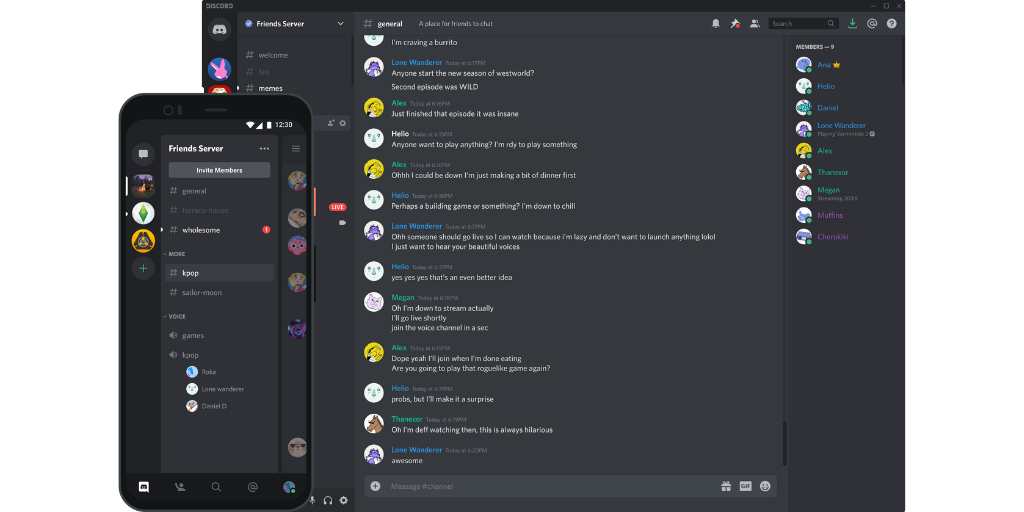
Discord’s Family Center allows parents to see more, guide more, and collaborate with their teen, while still protecting message privacy. Here’s a rundown of Family Center:
When parents set up Family Center, they can see:
Parents can’t see the content of their child’s messages in Discord Family Center, but you can monitor what they type with BrightCanary on iOS.
If your teen reports a user or piece of content, they can choose to notify you. The alert does not include report details, but it’s a helpful prompt to start a conversation.
Parents can now manage select account settings for teens, including:
Discord encourages parents and teens to set these together to align safety with your teen’s autonomy.
Discord’s platform can feel overwhelming to the uninitiated, so they’ve created a guide that walks through setting up your Family Center. Here’s the TL;DR:
To set up Family Center, you’ll need to create a Discord account on your mobile device. From there, go to User Settings → Family Center → Enable Family Center tab.
Your teen will need to give you the generated QR code that is located in their Family Center tab under the Connect with Guardian option.
Once linked, tap on My Family to see:
Under the Privacy and Safety section of your child’s account settings, there are a handful of features to maximize the safety of their Discord experience. We recommend setting the following:
With this feature, users can elect to have all direct messages (DMs), or only messages from non-friends, scanned and filtered for explicit material.
Users can also choose to have their DMs scanned and filtered for spam.
This setting can be toggled on to allow messages from other users in a server.
If direct messages are enabled, a user can allow messages from any users on that server — or only messages from their friends. We recommend the latter.
One caveat: Messages from non-friends aren’t blocked entirely, they’re sent to a separate “message requests” folder, so your kid can still access them if they choose.
Servers can be set as age-restricted by the owner, preventing users under 18 from accessing them.
Discord allows servers to be set as Not Suitable for Work (NSFW). Users under 18 are automatically prevented from joining NSFW servers.
In the Privacy and Safety settings, users can prevent the app from collecting and using their data for customization or analytics.
Discord is an excellent way for your teen to interact with friends, learn about topics of interest, and connect with others around shared interests. Because it’s an open chat platform, parents and kids need to be aware of the risks. By using safety features, talking to your kid about how to use the platform responsibly, and monitoring their use, it’s possible for Discord to be a safe, positive environment for your teen.
Want to monitor your child's Discord activity on their iPhone or iPad? Download BrightCanary today and start monitoring what they send across every app they use, including Discord, Roblox, Reddit, and more.

Co-parenting apps can help you with everything from coordinating complicated schedules to keeping your child safe online and offline, and communicating more effectively. These apps are useful for both parents living under the same roof who want help with logistics and divorced parents who need more effective ways to communicate about their child.
The best co-parenting apps make your life easier and reduce stress. Here's our roundup of the five best co-parenting apps.
Best for: Families who want to organize everything in one place.
Why you'll love it: FamilyWall is the app that does it all. It helps you manage logistics, share to-do lists, plan meals, communicate with each other, and locate your child when they’re away from home.
Highlights:
Best for: Shared custody situations
Available on: iOS, Android, web
Why you'll love it: Our Family Wizard is a co-parenting app that helps streamline communication, coordinate schedules, and manage shared expenses. It’s customizable, court-approved in all 50 states, and designed to help two-household families parent amicably.
Highlights:
Best for: Families who want a monitoring solution that helps keep their child safe online
Available on: iOS
Why you'll love it: BrightCanary monitors everything your child types across all apps and sends you real-time alerts about anything concerning, along with additional insight into their online activity. Because the monitoring is done remotely, BrightCanary is perfect for co-parenting situations. You get full access, no matter which house your child and their device are at. Plus, the Family Viewing feature allows the subscription holder to share access with a co-parent or other caregiver.
Highlights:
Best for: Location tracking and safety features for teen drivers
Why you'll love it: Unlike some of the other apps on our list that include a lot of bells and whistles, Life360 sticks to doing a few things really well. This app focuses on safety, with various ways to keep tabs on your child and built-in emergency support.
Highlights:
Best for: Families who want to take calendaring off their plate with AI automations
Why you'll love it: Jam takes the work out of calendaring. You give it your school emails, extracurricular schedules, and birthday party invites and, through AI magic, it loads everything into your calendar.
Highlights: