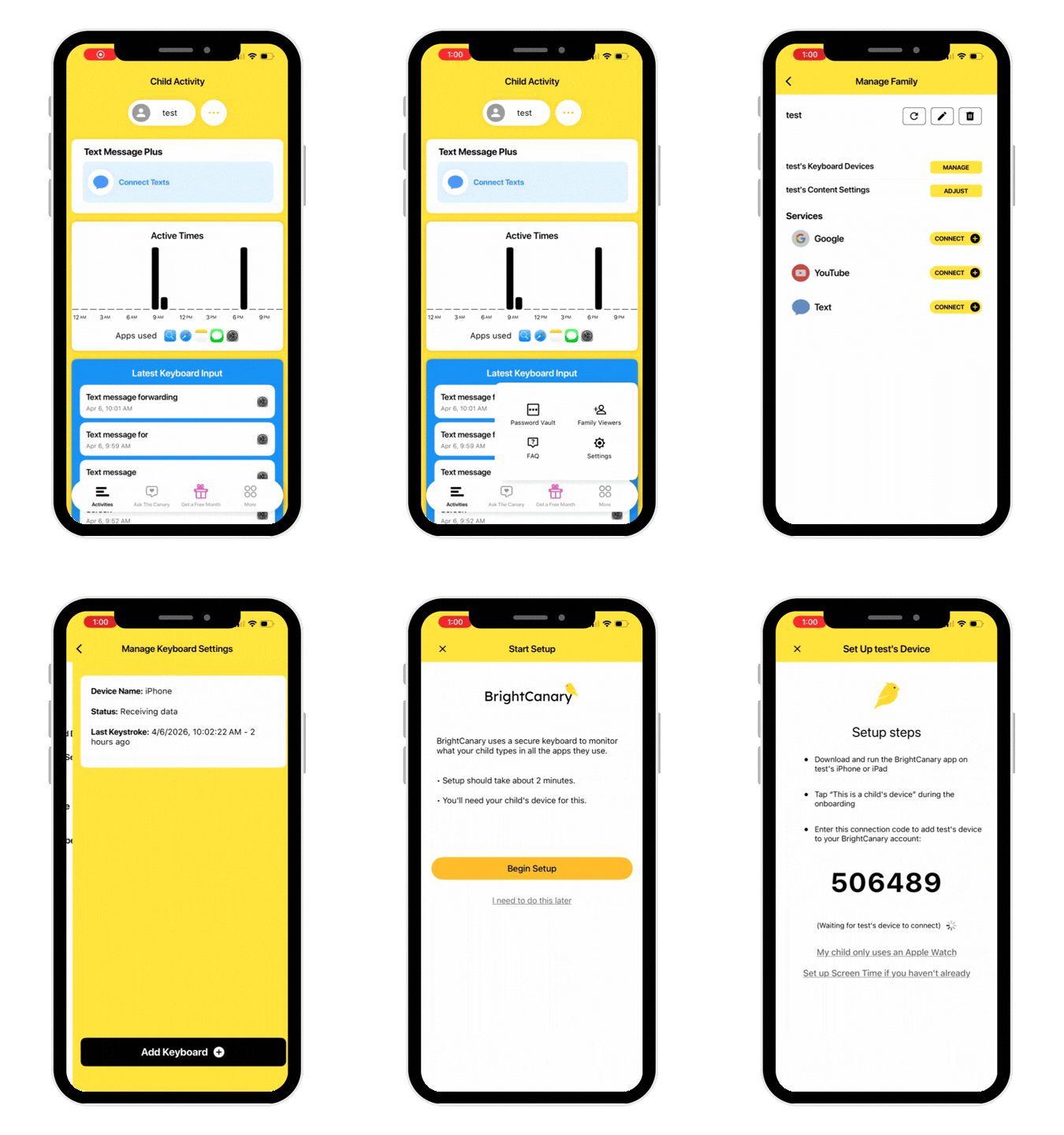
How do I reinstall the BrightCanary Keyboard?

If you have already checked the keyboard settings and things still are not working correctly, reinstalling the keyboard connection can help.

To re-add the keyboard:

  1. On the parent phone, open the BrightCanary app
  2. Go to More > Settings > Manage Family
  3. Tap your child’s name
  4. Select Keyboard Devices
  5. On your child’s phone, delete the BrightCanary app
  6. Reinstall the BrightCanary app on your child’s phone
  7. Open the app on your child’s phone and tap This is a child’s device
  8. Back on the parent phone, tap Add Keyboard

That's it! If issues persist, reach out to us at support@brightcanary.io.

Instagram logo iconFacebook logo icontiktok logo iconYouTube logo iconLinkedIn logo icon
Be the most informed parent in the room.
Sign up for digital parenting updates.
APA Labs Digital Badge
We've earned the APA Labs Digital Badge
BrightCanary is honored to earn this designation from the American Psychological Association (APA). This APA Labs Digital Badge reflects alignment with APA Labs criteria for scientific principles, safety, ethical use, and usability. It is not an endorsement nor guarantee of effectiveness. APA Labs does not independently test products.
Mom's Choice Awards Honoring Excellence
Excellence in online safety
The Mom’s Choice Awards evaluates products and services created for children, families, and educators. The program is globally recognized for establishing the benchmark of excellence in family-friendly media, products and services. BrightCanary was recognized for our excellence in family-friendly online safety.

@2026 Tacita, Inc. All Rights Reserved.